
Debugging MCP Data
How to Validate Tool Queries & Responses from Vena's MCP
When using Vena MCP with LLMs, it’s important to understand what data is actually being queried and what data the MCP server returns.
This helps you:
- Validate that the AI is querying the correct data
- Confirm filters (time, account, scenario, etc.) are applied correctly
- Avoid assuming data issues when the problem is actually the query
Key Concept
Vena MCP works by having the AI tool call backend tools (APIs).
These tools send structured requests to Vena and return data.
Most important tool:
VenaGetReportDataTool
This is the primary tool to inspect when validating results.
Step 1: View Tool Usage
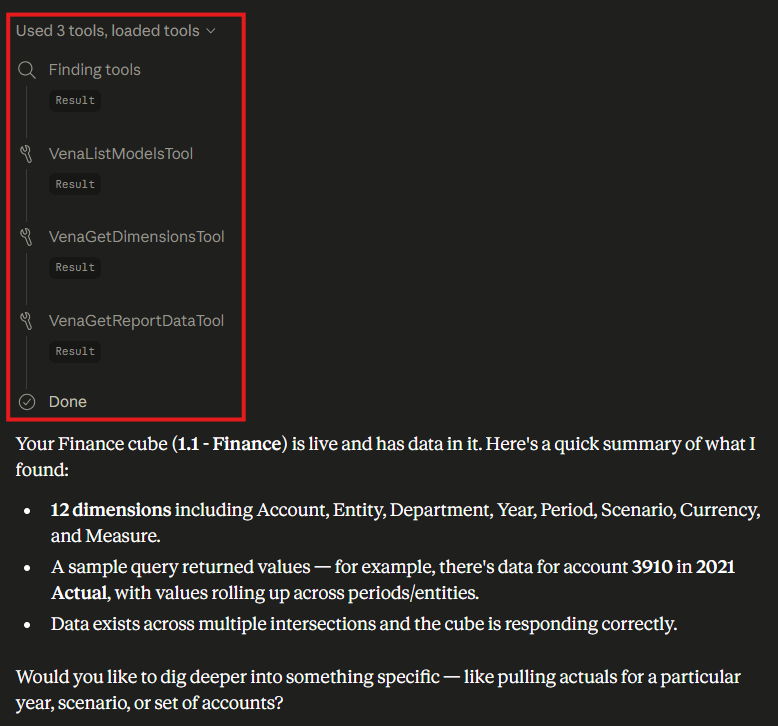
After running a prompt, look for the tool usage indicator:
- Displays how many tools were used (e.g., “Used 3 tools”)
- Select to expand and view detailed tool activity
Step 2: Open the Tool Call
Scroll down and locate: VenaGetReportDataTool
Expand it to view:
- Request (what was sent to Vena)
- Response (what Vena returned)
Step 3: Inspect the Request & Validate your Queries/Filters
Example request:
{
  "keyDimensions": [
    "Account",
    "Year",
    "Scenario"
  ],
  "modelId": "651628815408562176",
  "filters": [
    {
      "field": "Year",
      "eq": "2022"
    },
    {
      "field": "Scenario",
      "eq": "Actual"
    }
  ],
  "pageSize": 5000
}
Key fields:
modelId
- Identifies the model being queried
keyDimensions
- Defines how the data is grouped (e.g., Account, Year, Scenario)
filters
{
  "filters": [
    {
      "field": "Year",
      "in": ["2024", "2025", "2026"]
    },
    {
      "field": "Scenario",
      "eq": "Actual"
    },
    {
      "field": "Account",
      "mx": {
        "bottomLevel": { "attribute": "Currency" }
      }
    },
  	{
      "field": "Department",
      "mx": {
        "bottomLevel": { "name": "All Departments" }
      }
    },
    {
      "field": "Currency",
      "mx": {
        "bottomLevel": { "name": "Local" }
      }
    }
  ]
}
What to check
- Correct dimension (e.g., Year, Account, Scenario)
- Correct values (e.g., 2024 vs 2023)
- Expected scope (single value vs multiple values)
Common issues
- Wrong year or scenario selected
- Missing filters leading to unexpected totals or aggregated results
- Incorrect dimension name causing empty or incorrect results
Filters determine what data is returned, so this is the most important section to validate.
Recommendation
- Be very specific with what information you request from Vena's MCP
- Create a skills file with assumptions and information about the work you do
- Ask the LLM to ask you questions on the data slice or filter. Example: "Create a dashboard for me about last quarters revenue spike, please prompt me clarifying questions to help."
Step 5: Inspect the Response
Below the request, review the response payload. Validate:
- Data exists for the requested intersection
- Values match expectations
- No unexpected gaps or empty results
Summary
If results look incorrect:
| Symptom | Likely Cause |
|---|---|
| Missing data | Filters too narrow or incorrect or the user does not have the correct data permissions to view the data. |
| Unexpected totals | Missing dimensions or aggregation mismatch |
| Wrong period/scenario | Filter mismatch |
| Empty response | Invalid filters or no matching data |
In many cases, the data is correct, but the query is not.
Final Notes
- The tool call is the source of truth
- The filters section is the most important area to validate
- Reviewing tool requests helps distinguish between data issues and query issues
Updated 27 days ago